Browser Security Settings You Should Change in 2026
A complete guide to safer browser settings, phishing protection, extension security, and privacy improvements for modern browsers.
Updated April 2026Reviewed by StaySecureHub Editorial TeamEditorial review
Quick Answer
A complete guide to safer browser settings, phishing protection, extension security, and privacy improvements for modern browsers. This guide explains the main benefits, risks, and practical steps readers need to stay secure online in 2026.
Quick Summary
- Modern browsers include important built-in security protections
- Extensions and permissions are major browser security risks
- Safe browsing settings can reduce phishing and malware threats
- Regular browser maintenance improves privacy and security
Your browser is one of the most important security tools on your device — and also one of the biggest attack targets in 2026.
Phishing pages, malicious downloads, fake browser notifications, dangerous extensions, and tracking scripts all operate through the browser.
Fortunately, a few simple browser security settings can dramatically reduce everyday online risks.
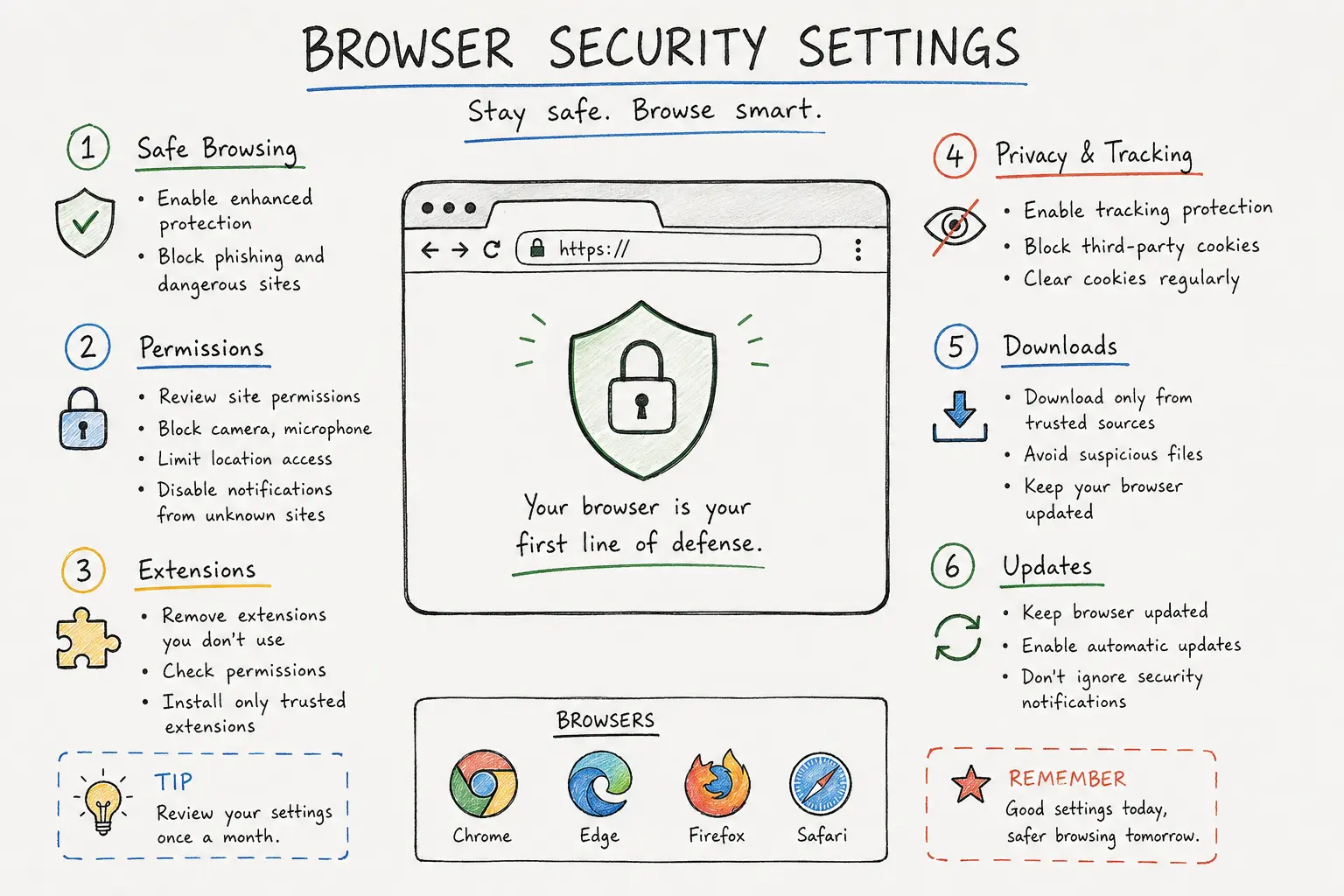
Why Browser Security Settings Matter
Most people spend hours every day inside a browser. That makes browsers one of the main targets for attackers.
Unsafe browser settings can expose users to:
- Phishing attacks
- Malware downloads
- Password theft
- Tracking and data collection
- Malicious browser extensions
- Fake security alerts
Good browser security settings reduce these risks significantly without making browsing difficult.
Most Important Browser Security Settings
| Setting | Purpose | Importance |
|---|---|---|
| Safe Browsing Protection | Blocks phishing and dangerous websites | Very High |
| HTTPS-Only Mode | Protects encrypted connections | High |
| Permission Controls | Limits access to camera, microphone, and location | High |
| Extension Management | Reduces malicious extension risks | Very High |
| Tracking Protection | Improves privacy and blocks trackers | Medium |
Enable Enhanced Safe Browsing
[[image:safe-browsing|Safe browsing phishing protection illustration]]Modern browsers include built-in phishing and malware protection systems.
These protections help block:
- Known phishing pages
- Dangerous downloads
- Malicious websites
- Fake login portals
- Scam pages
Recommended Browser Protections
- Chrome: Enable Enhanced Safe Browsing
- Edge: Enable Microsoft Defender SmartScreen
- Firefox: Keep phishing and malware blocking enabled
- Safari: Enable fraudulent website warnings
Review Browser Permissions
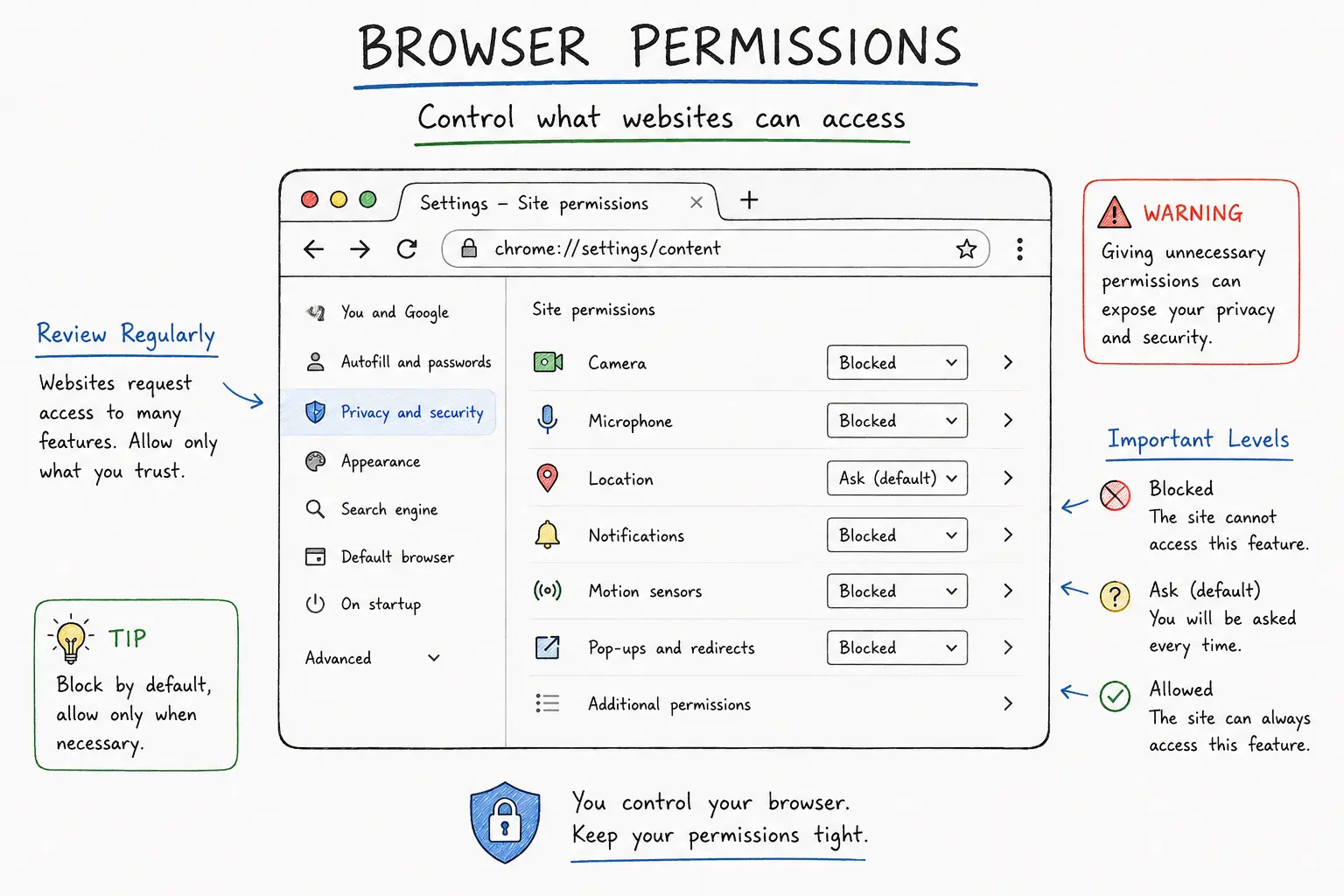
Many websites request access to sensitive browser features such as:
- Camera
- Microphone
- Location
- Notifications
- Clipboard access
Over time, users often allow permissions and forget about them.
Review permissions regularly and remove anything you no longer recognize.
Recommended Permission Settings
- Block camera access by default
- Block microphone access by default
- Limit location access
- Disable notification requests from unknown websites
- Remove old permissions from unused sites
Browser Extensions Can Be Dangerous
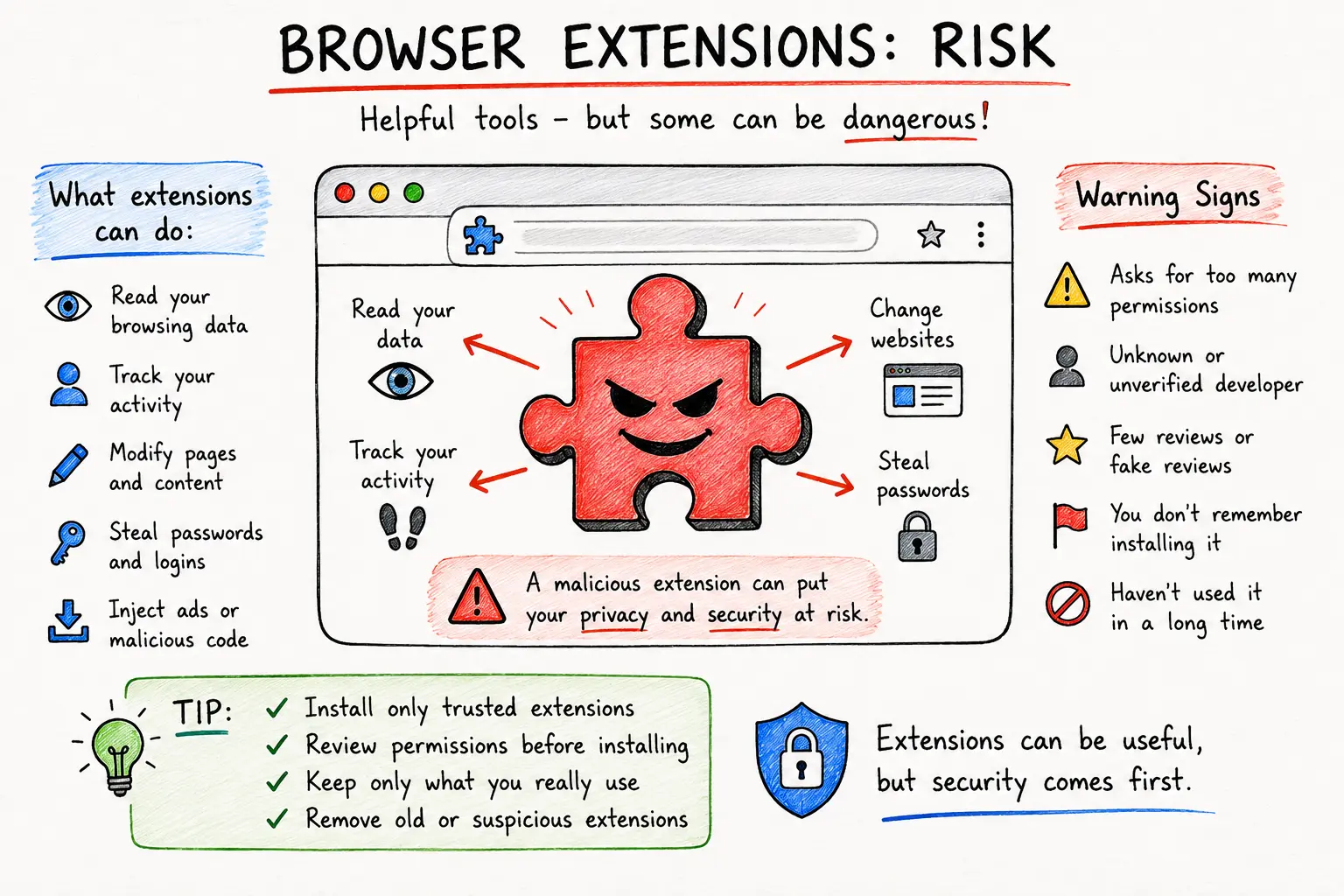
Browser extensions can access website content, browsing activity, passwords, and page data.
While many extensions are legitimate, malicious or poorly maintained extensions are a growing cybersecurity risk.
Warning Signs of Risky Extensions
- Requests for excessive permissions
- Unknown developers
- Fake reviews
- Extensions you no longer use
- Extensions installed automatically
Best Practices for Extensions
- Install extensions only from official stores
- Keep only extensions you actively use
- Review permissions before installing
- Remove old or suspicious extensions
- Avoid “free VPN” and “coupon” extensions from unknown developers
Protect Downloads and Browser Updates
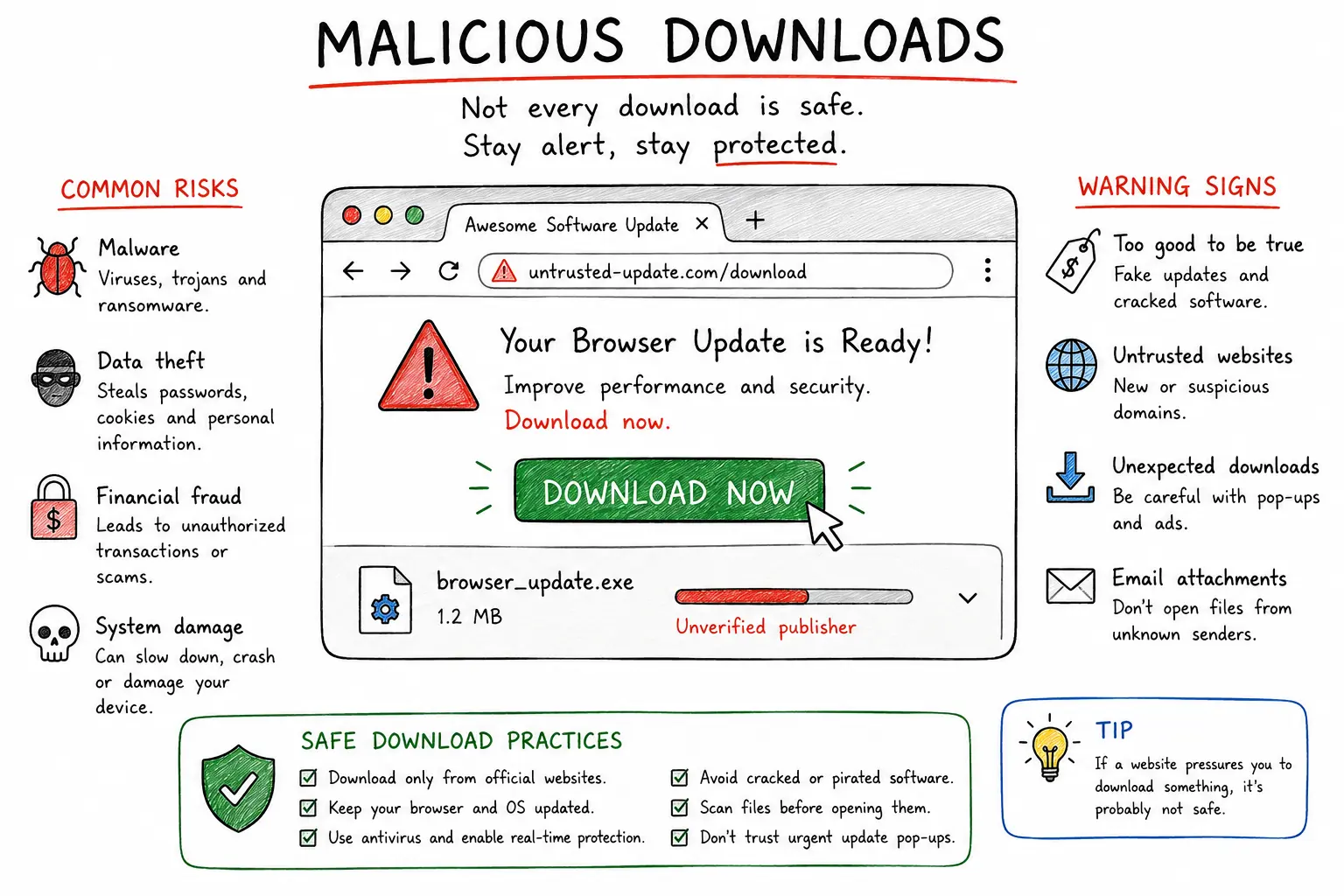
Cybercriminals often distribute malware through fake browser updates, cracked software, fake PDF converters, and malicious downloads.
Unsafe downloads remain one of the easiest ways to compromise a device.
Safe Download Practices
- Download software only from official websites
- Avoid cracked software
- Be careful with email attachments
- Do not trust “urgent browser update” pop-ups
- Use antivirus scanning when possible
Modern browsers update automatically. Most users should never manually install browser updates from random websites.
Enable HTTPS-Only Mode
HTTPS encrypts traffic between your browser and websites.
HTTPS-only mode helps prevent accidental access to insecure websites and protects browsing sessions on public networks.
This is especially important when using:
- Public Wi-Fi
- Shared networks
- Hotel or airport internet
- Untrusted connections
👉 Related: VPN security best practices
Strengthen Privacy and Tracking Protection
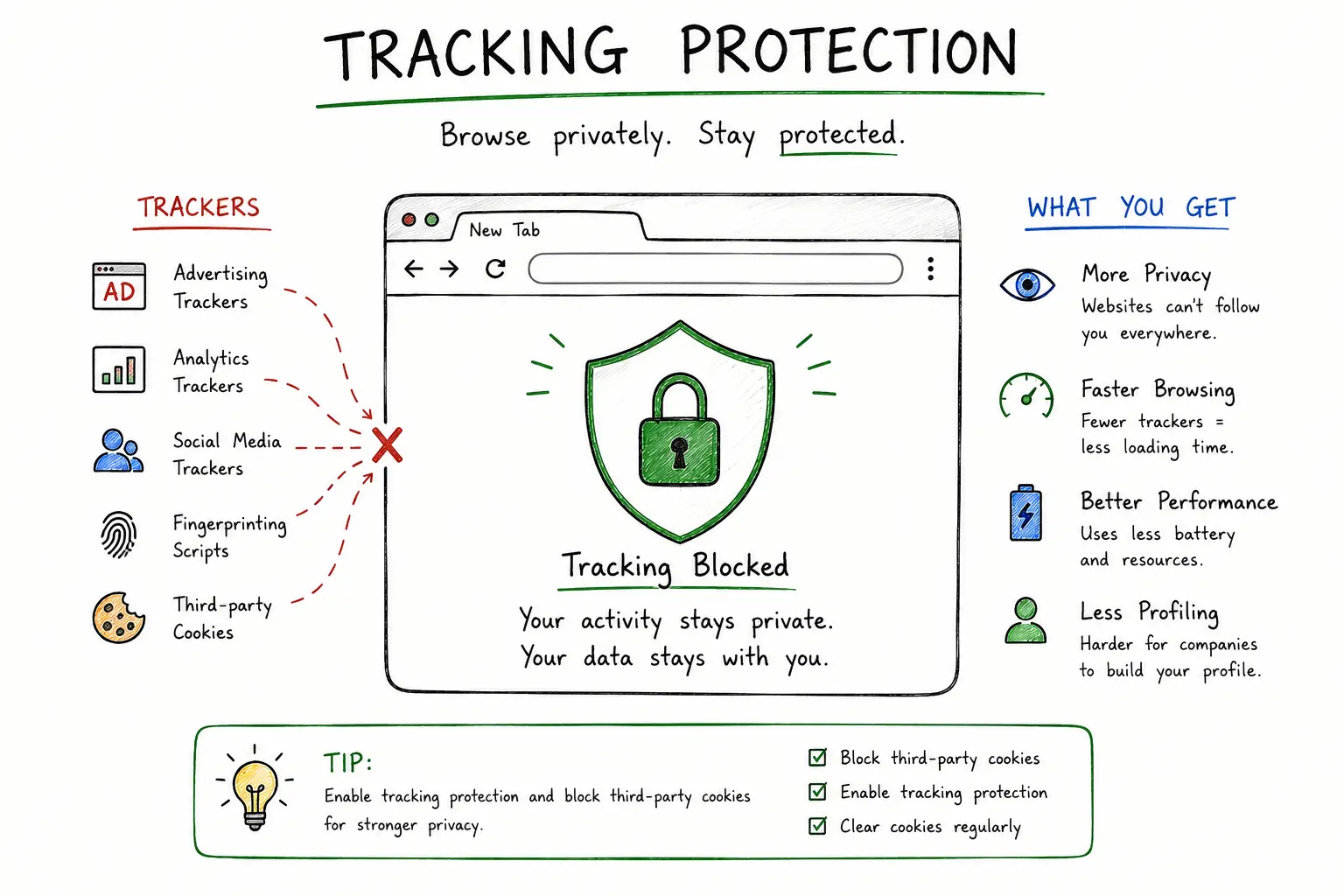
Tracking protection reduces how much advertisers and third-party scripts can follow your activity across websites.
Most modern browsers now include privacy protections by default.
Recommended Privacy Settings
- Block third-party cookies when practical
- Enable tracking prevention
- Use separate browser profiles for work and personal use
- Review stored cookies periodically
- Clear browsing data from unused websites
Recommended Browser Security Settings by Browser
Google Chrome
- Enable Enhanced Safe Browsing
- Use HTTPS-first mode
- Review site permissions regularly
- Check installed extensions monthly
- Enable password leak alerts
Microsoft Edge
- Enable Microsoft Defender SmartScreen
- Enable typo protection
- Use tracking prevention
- Review startup extensions
- Disable suspicious notifications
Mozilla Firefox
- Enable Enhanced Tracking Protection
- Block dangerous downloads
- Review permissions frequently
- Use DNS over HTTPS if appropriate
- Limit unnecessary add-ons
Safari
- Keep fraudulent website warnings enabled
- Limit cross-site tracking
- Review website permissions
- Keep macOS and Safari updated
- Use strong password protection
Monthly Browser Security Checklist
- Remove unused extensions
- Review site permissions
- Clear suspicious notification permissions
- Update the browser
- Delete suspicious downloads
- Check for unknown homepage or search engine changes
- Review saved passwords and accounts
Common Browser Security Mistakes
- Installing too many extensions
- Ignoring browser updates
- Allowing notifications from random websites
- Using weak or reused passwords
- Downloading software from ads or pop-ups
- Using outdated browsers for sensitive accounts
Should You Use a Privacy-Focused Browser?
Privacy-focused browsers such as Brave or Firefox can improve tracking protection and reduce advertising-related data collection.
However, browser security still depends heavily on user habits, extension safety, updates, and phishing awareness.
No browser alone can fully protect against unsafe behavior.
Final Verdict
Modern browsers already include strong security protections — but many users never review or configure them properly.
Simple changes like safer permissions, extension cleanup, phishing protection, and safer downloads can dramatically improve browser security in 2026.
Good browser security is not about paranoia. It is about reducing unnecessary risk while browsing normally.
FAQ
What is the most important browser security setting?
Phishing protection, safe browsing protection, extension management, and automatic updates are some of the most important browser security features.
Are browser extensions dangerous?
Some extensions can be dangerous because they may access browsing activity, website content, and sensitive information. Only install trusted extensions and remove unused ones regularly.
Should I block browser notifications?
Many fake websites abuse browser notifications for scams and malware distribution. Blocking notifications from unknown websites is recommended.
Is private browsing enough for security?
No. Private browsing mainly prevents local browsing history storage. It does not stop phishing, malware, unsafe downloads, or online tracking completely.
How often should I review browser settings?
Review extensions, permissions, notifications, and browser updates at least once a month.
How We Evaluated This Guide
We evaluated this guide for security, privacy, usability, pricing, features, and real-world usefulness so readers can make better decisions.
Alternative Options
We also compare this topic with relevant alternatives to help you decide whether it is the best choice for your needs.
Common Security Myths
Myth
iPhones cannot get malware.
Reality
iPhones are harder to compromise than many devices, but phishing, malicious profiles, scam apps, and account takeover still affect iOS users.
Myth
Android is automatically insecure.
Reality
Modern Android can be secure when updated, locked down, and used with trusted apps from reputable sources.
What Security Experts Recommend
- Use a reputable password manager for unique passwords and secure vault storage.
- Adopt passkeys on important accounts when available, but keep recovery methods protected.
- Enable two-factor authentication, preferably with an authenticator app or security key.
- Install operating system, browser, and app updates promptly.
- Review app permissions, browser extensions, and account recovery options every few months.
Best Security Tools

Bitdefender
Malware protection and device security
9.5

NordPass
Password managers, passkeys, secure sharing
9.3

NordVPN
VPN privacy, public Wi-Fi, streaming
9.6

Incogni
Personal data removal and broker opt-outs
9.2