
Quick verdict: try it for a routing problem
GearUP Booster is a conditional recommendation. It is most relevant when your game connection suffers from an inefficient route or congestion that a different path can avoid. It is less compelling when your connection already delivers stable, low latency.
Start by separating network lag from slow rendering. Rubber-banding, delayed actions and inconsistent ping point toward connection trouble; low frame rates need a different investigation. Check the game's service status, try Ethernet where possible and pause background downloads before paying for another service.
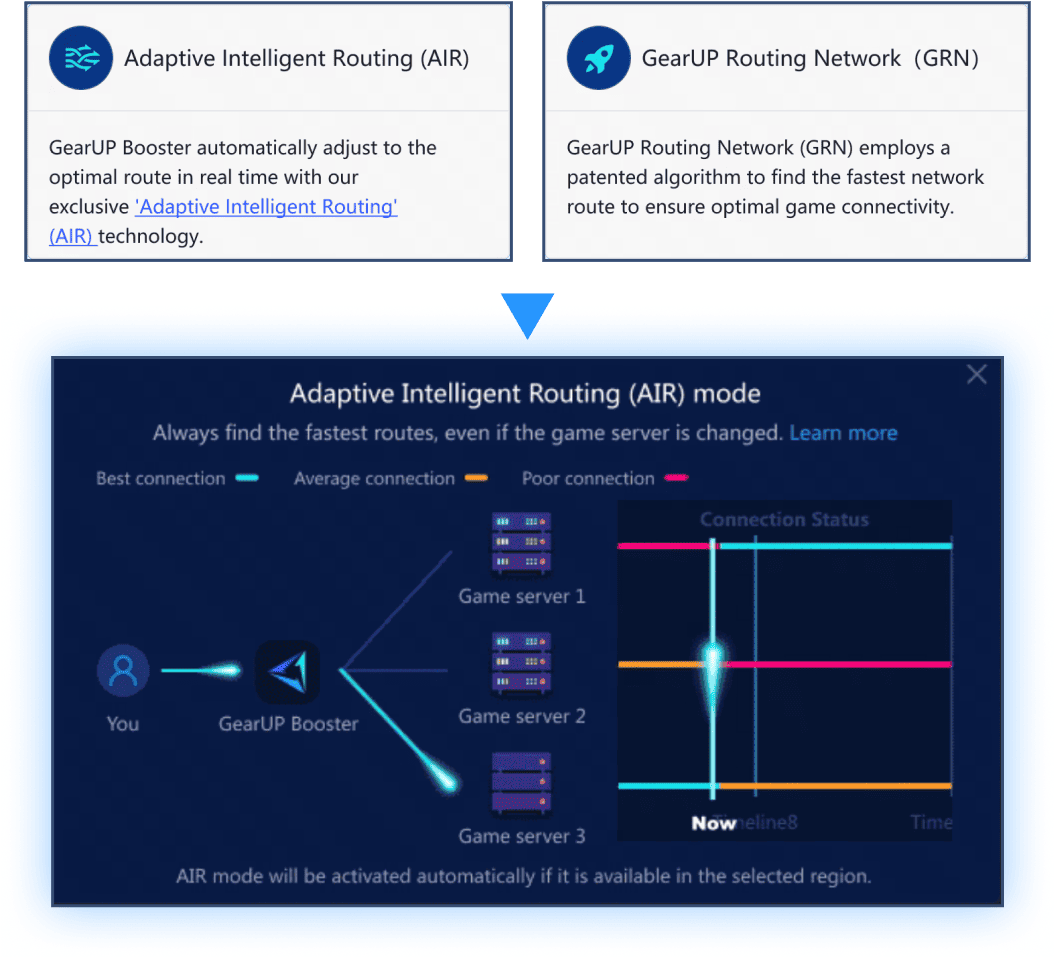
Review basis: this article assesses official documentation and purchase conditions checked on November 2, 2026. We have not performed independent gameplay benchmarks or a security audit of GearUP. Vendor illustrations and screenshots below are explanatory material, not our test evidence.
How GearUP Booster works
GearUP describes a network-routing service that sends supported game traffic through alternative paths to the game server. Its Adaptive Intelligent Routing (AIR) feature is intended to adapt connections for supported multi-server games. Availability depends on the selected game and region; do not assume every connection uses the same features. Read GearUP's AIR explanation.
The practical reasoning is straightforward: if your normal path takes an inefficient detour or crosses a congested link, another path may work better. If the normal path is already efficient, adding an intermediary can bring no benefit or add delay. Route optimization does not remove the physical distance to a server.
Supported games and platforms
GearUP offers Windows software and mobile apps for Android and iOS. Match the product to the platform you actually play on, and check the live catalog for your game's edition and server region. A supported title alone is not proof of a better connection.
- GearUP for Fortnite: verify support for your platform and the region you normally use.
- GearUP for Valorant: choose the intended server region and measure the connection in actual matches.
- GearUP for PUBG: distinguish the PC, console and mobile editions when checking coverage.
Check the current supported-game catalog. These game and catalog links are affiliate links.
Console support requires its own setup
GearUP's PlayStation guide describes connecting through a Windows PC on the local network and configuring the console's network settings. GearUP also offers HYPEREV router hardware. Check the device-specific guide for PlayStation, Xbox or Nintendo Switch before buying; console support is not simply the mobile app running on a console. See the official PlayStation instructions.
Hardware, apps and memberships are not automatically interchangeable. The official HYPEREV app comparison distinguishes router membership from the PC and mobile products. Confirm what your purchase covers. We do not assume native macOS or Linux app support.
Performance: what could improve, and what cannot
The useful outcomes to look for are lower in-game latency, fewer sudden latency changes (jitter) and less packet loss. They are separate measurements: a slightly lower average ping may not outweigh frequent spikes or disconnects.
Results vary with your ISP, physical location, time of day, local network, game region and the paths available to GearUP. A successful result for another player is not a prediction for your household. Treat dramatic vendor comparisons as examples to investigate, not a promised saving in milliseconds.
Limits that matter before you pay
- Local problems remain local: weak Wi-Fi, a damaged cable or an overloaded home connection may need attention first.
- Server problems remain possible: an overloaded or failing game server is not reliably fixed by changing your route.
- FPS is different from ping: network routing does not upgrade your GPU, CPU or display.
- Extra routing can hurt: stop boosting if your connection becomes slower or less stable.
A simple comparison you can run
Use the same device, connection and game region. Compare several ordinary sessions with boosting off and on, ideally around your normal playing time. Note in-game ping, spikes, packet loss where available and disconnects. Keep other traffic similar. Prefer in-game measurements over comparing two dashboard numbers that may represent different endpoints.
Keep the service only if the improvement repeats and solves the problem you actually notice. A single unusually good match is a weak basis for a long subscription.
Pricing, trial periods and automatic renewal
Check the current checkout for the full price. We are not quoting a universal price, discount or cheapest plan: the relevant amount is the offer available for your account, region, platform and billing channel. Compare the total payable now, currency, taxes, term length and next renewal charge. An advertised monthly equivalent can still mean a larger upfront payment.
Before subscribing, confirm that the membership covers your intended devices and games. Do not buy router hardware or a separate mobile membership assuming an existing PC plan includes it.
The User Agreement describes a three-day trial unless signup specifies another duration, followed by billing unless canceled. Eligibility and the actual signup offer matter; a free download does not establish a free membership.
Check the billing time before starting a trial
The PC auto-renewal FAQ says renewal is enabled with an order in eligible regions. It warns that trial billing can begin 30 minutes before expiry, recommends cancellation three days before billing, and says some payment channels restrict cancellation during the final 24 hours. Canceling renewal during a PC trial can end trial access immediately.
These timings make a last-minute cancellation plan risky. Inspect Configure > Account Settings for your exact billing schedule before authorizing payment; if the trial length and cancellation window are unclear, ask support first. For an app-store subscription, use that store's subscription controls. Uninstalling the app does not cancel billing; retain the cancellation confirmation.
Check the applicable refund terms separately from cancellation. We do not promise an unconditional money-back guarantee.
Check current plans and billing terms
This subscription link is an affiliate link. Confirm the charge and renewal conditions on GearUP before completing a purchase.
GearUP Booster vs a traditional VPN
Choose according to the problem. GearUP focuses on supported game connections. A traditional privacy VPN normally creates an encrypted tunnel for the traffic covered by its settings and is evaluated for privacy, security and broader online use. Either kind of intermediary can change latency; neither guarantees faster games.
| Question | GearUP Booster | Traditional privacy VPN |
|---|---|---|
| Primary purpose | Optimize supported game routes | Protect traffic through a VPN tunnel, according to configuration |
| What to evaluate | In-game ping, jitter, packet loss and stability | Encryption, privacy policy, audits, leak protection and performance |
| Guaranteed lower ping? | No | No |
| General browsing privacy? | Do not assume VPN-equivalent protection | A core purpose, subject to the provider's capabilities and practices |
If your goal is privacy beyond gaming, read our NordVPN review, Proton VPN review and public Wi-Fi safety guide. These cover a different buying decision. Check GearUP's privacy policy before trusting it with your connection; we have not audited its data handling.
How to use GearUP Booster: a short Windows guide
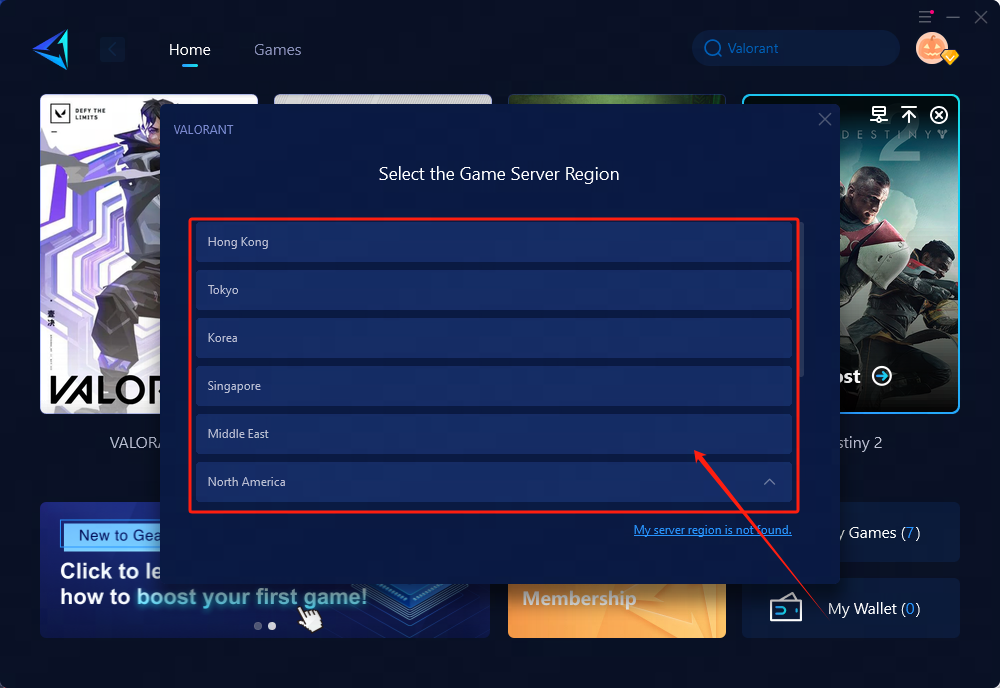
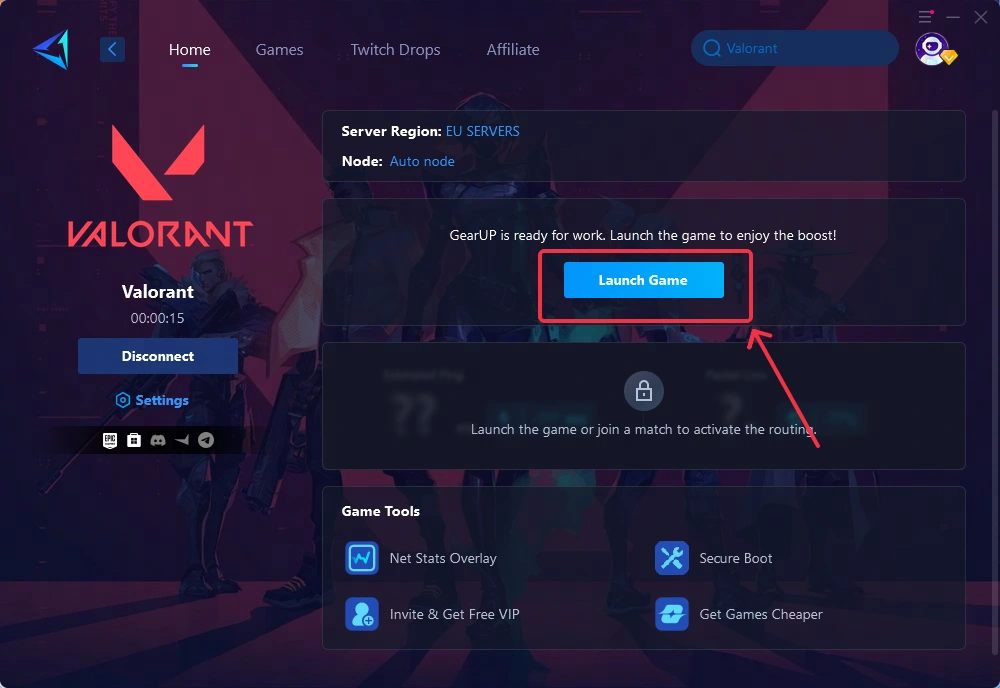
Follow the official first-time setup guide. The screenshots are supplied by GearUP and illustrate the workflow; labels and available regions can change.
- Install and sign in. Get the Windows app from the official site. Check the trial and renewal terms before entering payment details.
- Find your game and choose its server region. Search the exact title and match the region to the server you intend to play on.
- Start boosting before opening the game. Wait for the connection to be ready, then use Launch Game or your usual launcher.
- Check the result in-game. Compare with your normal connection. Stop boosting if latency or stability becomes worse.
For mobile and consoles, use the instructions for that specific product. Check the game's current rules and support guidance if a connection tool conflicts with login, matchmaking or anti-cheat; no booster can promise universal publisher approval.